Troubleshooting Sound and Microphone Issues.
*QUICK TIP! A quick fix is to simply restart your laptop or exit and rejoin your zoom or team call.
If you are using a USB headset simply unplug the device and try to use a different USB port.
Always have a backup sound and microphone option to hand. Eg buy a USB Headset to use in case your inbuilt or bluetooth headset stop working.
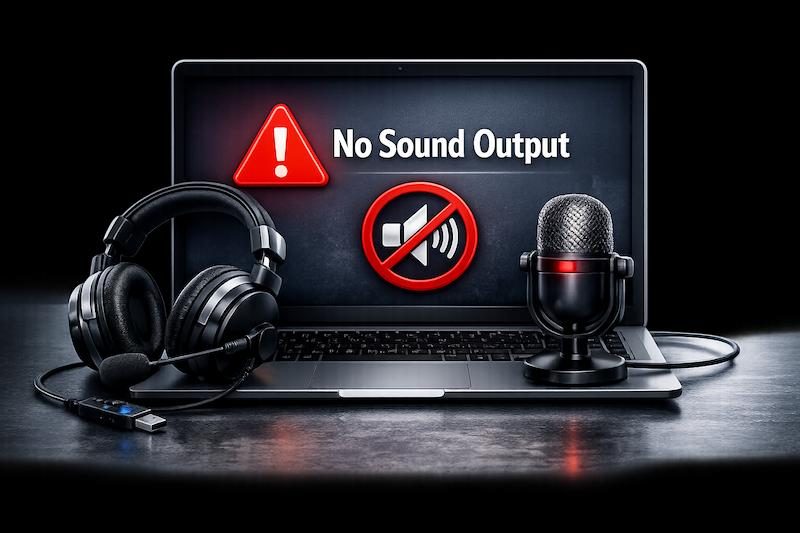
What to do if other people cannot hear you.
Such as if others cannot hear you at all, or are hearing lots of background noise.
Make sure your USB device is not on mute.
If you are using a USB headset, check that you haven't accidently hit the mute button.
Check your USB Headset for any physical damage or loose cables.
Make sure your USB headset has all the required cabling plugged in and there are no signs of any physical damage to the microphone.
Try using a different headset to see if this resolves the issue.
Are people hearing lots of background noise?
Make sure to select the correct device to use for sound input in the sound settings in Zoom or Microsoft Teams.
Sometimes USB webcams will also allow you to use their inbuilt microphone that will pickup other noise if you are in a busy office.
If you are in a busy office or public place, using noise cancelling headset will be better than using the inbuilt microphone.
*SEE
- How to check your sound settings in Zoom
- How to check your sound settings in Teams
- How to check your sound settings in Google Meet.
Consider buying better noise cancelling headphones.
Are there any Pending Updates for your computer?
Sometimes with automatic updates the computer hardware drivers will be updated / replaced in the background and will need the device to be restarted in order to resume functioning again.
Restart your laptop.
Try restarting your laptop to see if the network / wifi drivers get updated / start working again.
Run the Windows Sound troubleshooter.
See if Windows can automatically resolve the issue for your by running the windows troubleshooter.
Are you having issues with bluetooth /wireless headset?
Try to toggle your bluetooth setting on and off.
Are you having issues with the inbuilt microphone?
Check if the input device drivers are displaying in the device manager.
Check if you can update the input drivers via the vendors website.
Try using a usb sound and mic headset.
If you cannot hear other people on a call or any sound playback.
Make sure your device isnt on mute.
Are you using a USB Headset?
If you are using a USB headset, check that you haven't accidently pressed the mute button on the headset controller. Most controllers will display a red light on the mute symbol to show you if you are on mute.
Is your system sound setting is set to mute?
Is your sound muted in the Windows 11 sound control panel.
*SEE
- How to check your Windows sound control panel
Is the application you are using sound setting set to mute?
Are you muted due to the setting in your video conferencing application such as Zoom, Teams or Google Meet?
*SEE
- How to check your sound settings in Zoom
- How to check your sound settings in Teams
- How to check your sound settings in Google Meet.
Is your computer sound output volume set too low?
Check the level of the sound volume output.
Are you using the correct device for sound output?
Sometimes with automatic updates the computer hardware drivers will be updated / replaced in the background and will need the device to be restarted in order to resume functioning again.
Restart your laptop.
Try restarting your laptop to see if the network / wifi drivers get updated / start working again.
Has the issue occured after restarting your computer / installing a recent update?
A recent update may have caused a compatibility issue.
Sometimes after installing Windows updates your sound will stop working and you will either have to rollback to the previous version or download the sound drivers from the vendors website.
*SEE
- Are you missing your sound driver software in Windows Device Manager?
- How to revert to a previous driver version.
Common Computing issues
Click on the images below to help you resolve your issue.
Wifi Issues
How to resolve common Wifi connection issues.
Can be caused by driver issues / weak signals / airplane mode.
Sound and Microphone Issues
Having trouble hearing or being heard?
Can be caused by driver issues / loose cables / hardware faults / wrong device selected in settings.
Webcam Issues
People not able to see you on the call?
Loose cables / Driver updates / wrong camera selected / privacy filter.
Slow performance
What can cause your computer to be slow.
Too many Apps open / updates being installed in the backround / processes hogging the memory / scan running / Virus / Malware.