Resolving Webcam Issues.
*QUICK TIP! Always keep a spare USB Webcam to hand in case your devices internal webcam stops working and you need to have a video call.
If you camera suddenly stops working, try to restart your computer in case any updates being installed in the background need to the computer to be restarted in order to complete the installation process.
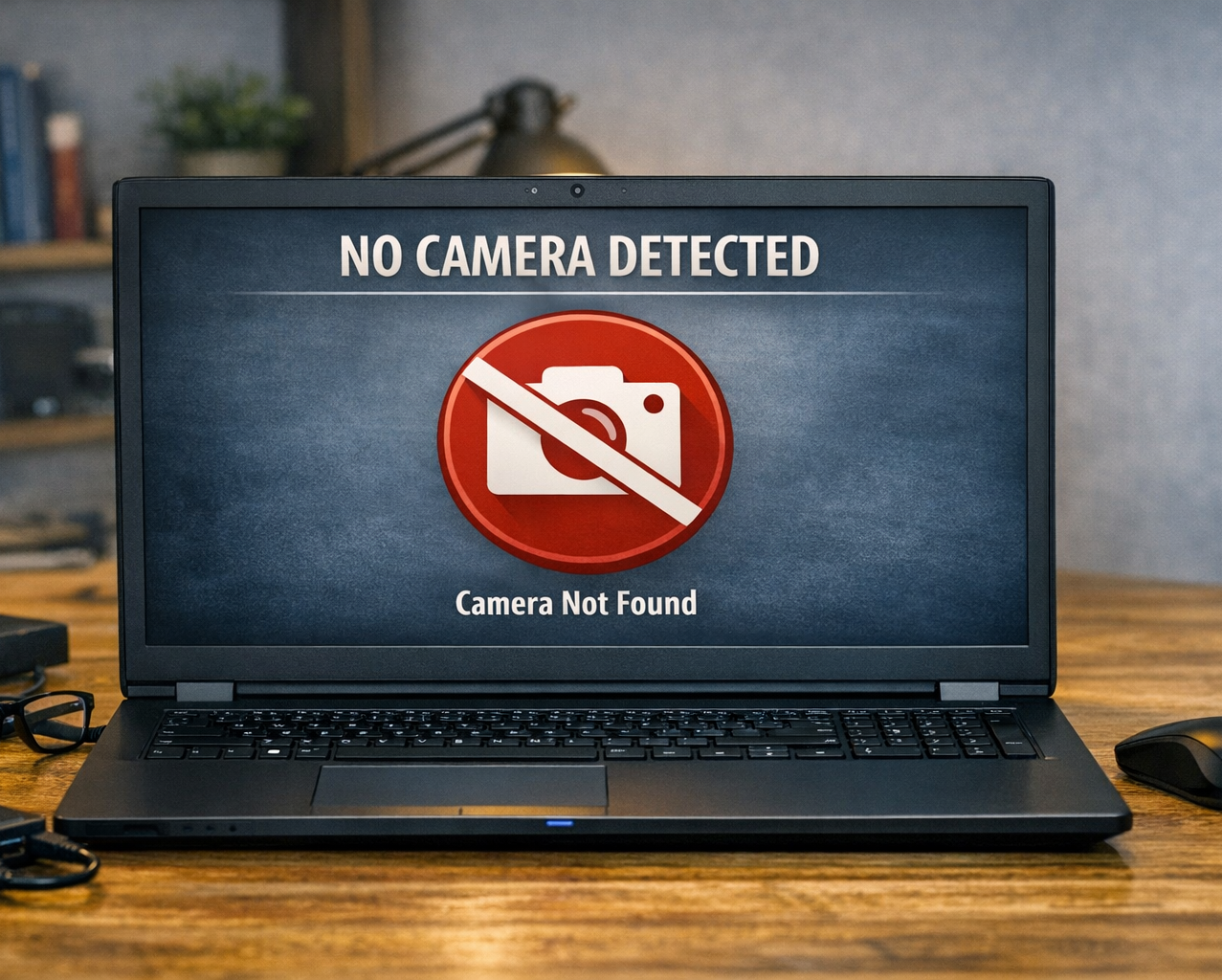
Help with Webcam issues
Is the Privacy Shutter / Slider covering the lens?
Most laptops and some external USB webcams have a physical privacy lens shutter that can be manually positioned to cover the lens.
Sometimes you can accidentally move the shutter when opening the laptop’s lid.
See
- How to toggle your laptop camera privacy shutter.
Check your camera is working in the Windows Camera App.
In windows 11 – launch the camera app to see if the camera is available, if the camera display isn’t available here it could be due to a hardware driver issue or a physical hardware issue.
Check that the camera is available in Windows Device Manager.
Check that the camera is available in Windows Device Manager, if it is unavailable try to restart your computer to see if it reinstalls itself.
Sometimes when drivers are updated in the background you will find that the wifi or camera might stop working and by restarting the computer the installation process is completed and the issue is resolved.
To revert to the previous driver -
in device manager – find the camera option, right click and select uninstall device and then restart the laptop to see if the previous driver gets installed.
Make sure you have the correct device selected in your video call app.
Make sure you are using the correct webcam in the settings option for Microsoft Teams / Zoom / Google Meet.
Do you have the laptop lid closed and trying to use the inbuilt webcam instead of the USB webcam?
Are there any Pending Updates for your computer?
Sometimes with automatic updates the computer hardware drivers will be updated / replaced in the background and will need the device to be restarted in order to resume functioning again.
Restart your laptop.
Try restarting your laptop to see if the inbuilt camera drivers get updated / start working again.
Always make sure your devices' inbuilt camera driver is up to date.
Manually check for any new updates via windows update.
See
- How to Run Windows Update
Also check for any available updates via your device manufacturers website / Support App to use the most upto date driver version.
See
- Using Dell Command
- Using Lenovo Vantage
- Using HP Assistant
To update your computer drivers.
Issues with an external / USB Webcam.
Check the cameras physical cable connection –
- Check the cable isn’t damaged.
- The cable is correctly inserted into a working usb port.
- Try to unplug the USB camera and try it in a different USB Port.
Run the Windows Troubleshooter.
You may be able to resolve the issue via the Windows Troubleshooter.
See
- How to run the Windows Wifi Troubleshooter.
Common Computing issues.
Click on the images below to help you resolve your issue.
Wifi Issues
How to resolve common Wifi connection issues.
Can be caused by driver issues / weak signals / airplane mode.
Sound and Microphone Issues
Having trouble hearing or being heard?
Can be caused by driver issues / loose cables / hardware faults / wrong device selected in settings.
Webcam Issues
People not able to see you on the call?
Loose cables / Driver updates / wrong camera selected / privacy filter.
Slow performance
What can cause your computer to be slow.
Too many Apps open / updates being installed in the backround / processes hogging the memory / scan running / Virus / Malware.